Welcome to Jaify Support
Search
Operation Video
PRODUCT
SECURITY
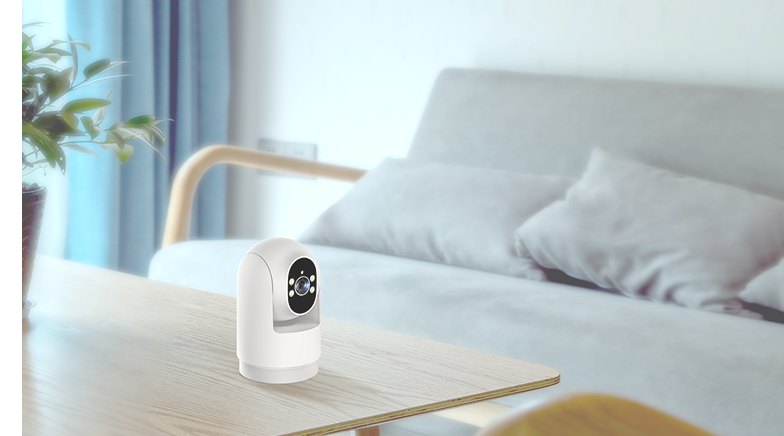
Indoor Wi-Fi Camera
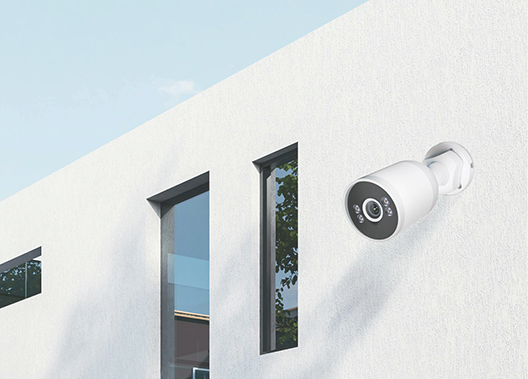
Outdoor Wi-Fi Camera
Outdoor 4G Camera
SMART HOME
Smart Door Lock
Power strip
Lighting

FAQ

How to add a Wi-Fi device

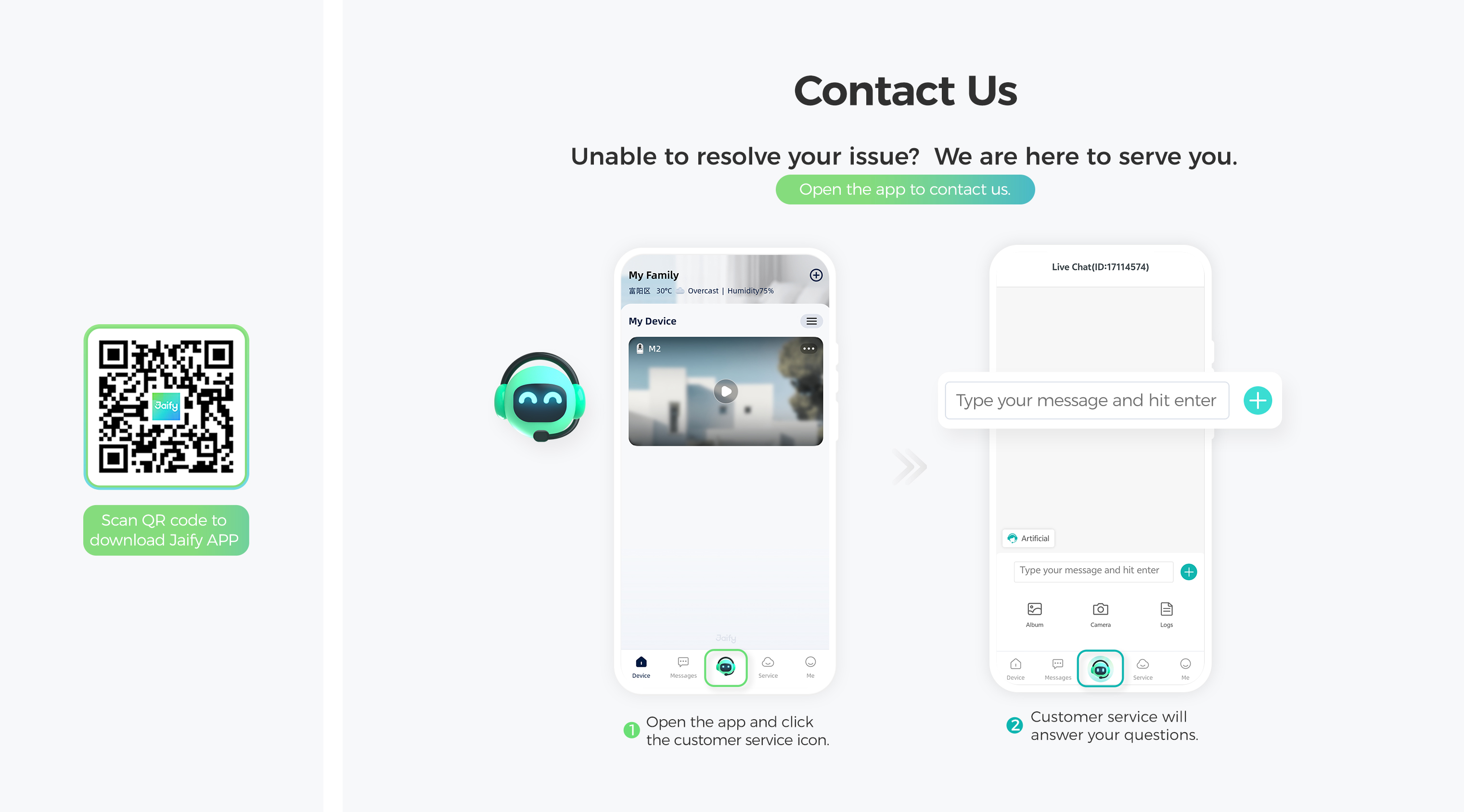
1. Scan the QR code on the product box to download the Jaify app to your mobile phone from app markets such as App Store (iOS) and Google Play (Android), then complete user registration and login according to the on-screen prompts.
2. Place both the camera and mobile phone near the Wi-Fi network to ensure good signal strength. The device only supports 2.4G-band Wi-Fi networks; please confirm the Wi-Fi band before use.
3. Power on the camera, and wait for the voice prompt "System starting up, connecting,please wait" before proceeding with network configuration. If the prompt is not heard for a long time, press and hold the reset button to reset the camera, then retry network configuration.
4. Connect your mobile phone to Wi-Fi and turn on the Bluetooth function.
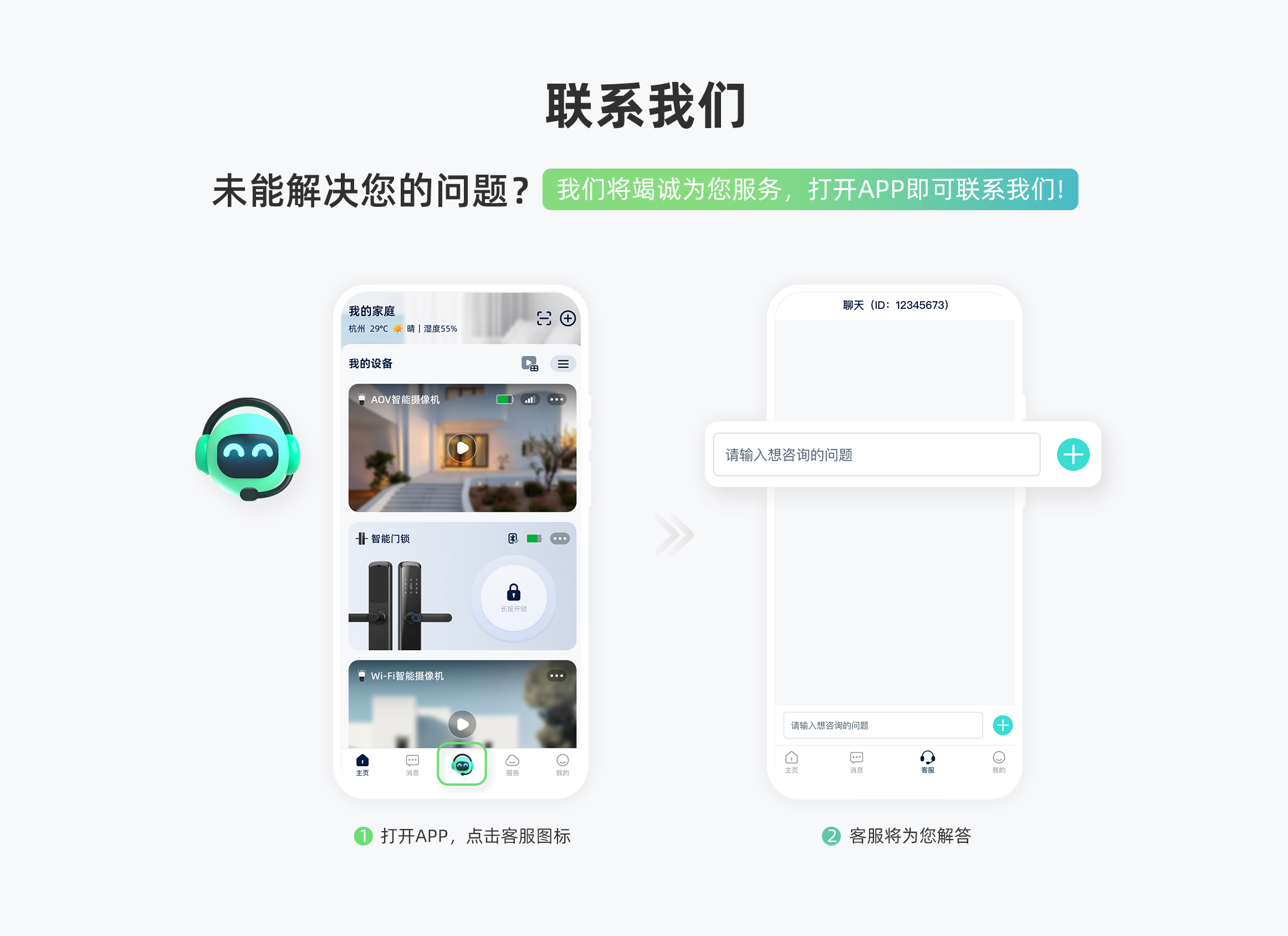
5. After logging into the app, tap the "+" icon in the upper right corner of the main interface. Once the camera is detected and displayed on the screen, tap the "+" icon again and follow the on-screen prompts to complete device addition.

How to solve Wi-Fi device network configuration connection failure

1. Ensure the Wi-Fi router is in normal working condition. Check that your mobile phone can access the internet by disabling mobile data and connecting only to Wi-Fi.
2. The camera only supports 2.4G-band Wi-Fi networks; please confirm your network is a 2.4G band.
3. If the connection still fails, optimize the network connection as follows:- Move the camera closer to the router and keep it away from obstacles and interference sources such as walls, elevators, microwave ovens, washing machines and Bluetooth devices.- Unplug infrequently used devices from the router or restart the router if possible.
4. Check the following network requirements for troubleshooting:- Ensure DHCP is enabled on the router.- Disable IPv6 on the router.- Turn off the blacklist/whitelist firewall settings on the router.- Try connecting to another 2.4G-band Wi-Fi network for verification.

How to reset the camera

There are two reset methods: software reset and physical reset.
1.Software Reset: Open the Jaify app and enter the “device interface”. Long-press the target device icon to get into the "Device manager" page. Tap "Settings" option and the "Device-related information" option , scroll to the bottom of the page, and tap "Restart" option. The device will voice prompt "Restoring factory settings, don't power off".
2.Physical Reset: Find the Reset button on the device body or bottom (usually near the SD card slot). Press and hold the Reset button until you hear the prompt "Restoring factory settings, do not power off", then release the button and wait for the reset to complete. The device will be automatically removed from the app device list after resetting.

How to fix offline device issues

1. Pull down to refresh the "Device page" in the Jaify app to check if the camera goes online.
2. For Wi-Fi devices, restart the router to resolve unstable connection or signal range issues.
3. For adapter-powered cameras, unplug and re-plug the power supply. For battery-powered cameras, turn off and restart the device via the power switch. Wait 10-30 seconds before restoring power, then check if the device goes online.
4. All Jaify devices need to be re-added after resetting, which will usually restore the device online status.

How to reduce camera noise

1. Update the device firmware (long-press the target device icon to get into the "Device manager" page, then tap the "Settings" option and "Device-related Information" option to get into the "About Device" page, then you will se the "Upgrade" button) and Jaify app (Me — About — Current Version) to the latest versions
2. Adjust the camera placement and environment:- Avoid enclosed spaces: Do not place indoor cameras in confined areas or close to walls and corners to prevent echo and reverberation.- Stay away from electromagnetic interference sources: Keep the camera away from microwave ovens, refrigerators, power transformers and other EMI devices that cause audio noise.- Avoid audio feedback: Do not place your mobile phone too close to the camera during voice calls, and avoid using them in the same room to prevent howling and echo feedback loops.

What to do if the camera frequently goes offline

1. Update the device firmware (long-press the target device icon to get into the "Device manager" page, then tap the"Settings" option and "Device-related Information" option to get into the "About Device" page, then you will se the "Upgrade" button) and Jaify app (Me — About — Current Version) to the latest versions.
2. Ensure stable and strong Wi-Fi signal.
3. Move the camera closer to the router and keep it away from obstacles and interference sources such as walls, elevators, microwave ovens, washing machines and Bluetooth devices.
4. Disconnect infrequently used devices from the router to reduce network load.
5. Try connecting to another 2.4G-band Wi-Fi network for testing.

How to reconnect the camera after changing the Wi-Fi router password

After changing the Wi-Fi router password, the device needs to be reconfigured with the new password. Physically reset the camera by pressing and holding the Reset button (located on the device body/bottom near the SD card slot) until you hear the prompt "Restoring factory settings, do not power off", then release the button and complete network reconfiguration.

Documentation

Get in Touch with Jaify

Contact Name*

Contact Email*

Contact Phone*

Business Type*

Business Name *

Business Area*

Products of Interest*

Required Quantity*

By continuing, you agree to our Terms of Use and Privacy Policy.

By clicking the "Submit" button below, you agree that a Jaify specialist may contact you via text message,phone call,or email.Your information is collected and used in accordance with our privacy policy.

I will not use,nor allow Jaify products to be used in locations that are not privately owned by me,such as but not limited to any public locations,governmentally owned locations,schools,hospitals,or on private property owned by someone else.

Stay Up to Date
Sign up for all the latest news
Register

By continuing, you agree to our Terms of Use and Privacy Policy.

Email me with news and offers (you can unsubscribe at any time)